
Channels
Connect WhatsApp
One click starts Meta's own connect window and your number is live on the official WhatsApp Cloud API. Here is exactly what happens, what your number needs, and how to undo it.
What kind of number you need
- A phone number that will belong to the business — customers will message it, and the agent will answer on it.
- The number must not be actively registered in the normal WhatsApp or WhatsApp Business app. If it is, Meta's window has you release it during the flow (your chats stay on your phone).
- If the number ever had a WhatsApp two-step verification PIN you no longer know, disable it first — an unknown PIN is the one thing that can block activation. Number still in the app: WhatsApp → Settings → Account → Two-step verification → turn off. Number no longer in any app: Meta offers a PIN reset by SMS/email during the connect flow.
Connect, click by click
- Open Integrations
Dashboard → Integrations. The WhatsApp card says Not connected and explains: "Your agent can't receive a single customer message until WhatsApp is connected. One click below and Meta walks you through it."
- Press Connect WhatsApp (recommended)
A Meta popup opens (this is Meta's official Embedded Signup — you are logging into Facebook/Meta, not giving us your password). It creates or picks your WhatsApp Business Account and asks which number to connect.
- Follow Meta's steps
Verify the number by SMS or call if Meta asks. When the window closes, WSend finishes the wiring automatically: it registers the number for messaging, subscribes to incoming messages, and stores everything encrypted.
- Look for the green badge
The card flips to Connected — "Official Meta Cloud API connection is live (number ID …)". From this second, customer messages reach your agent.
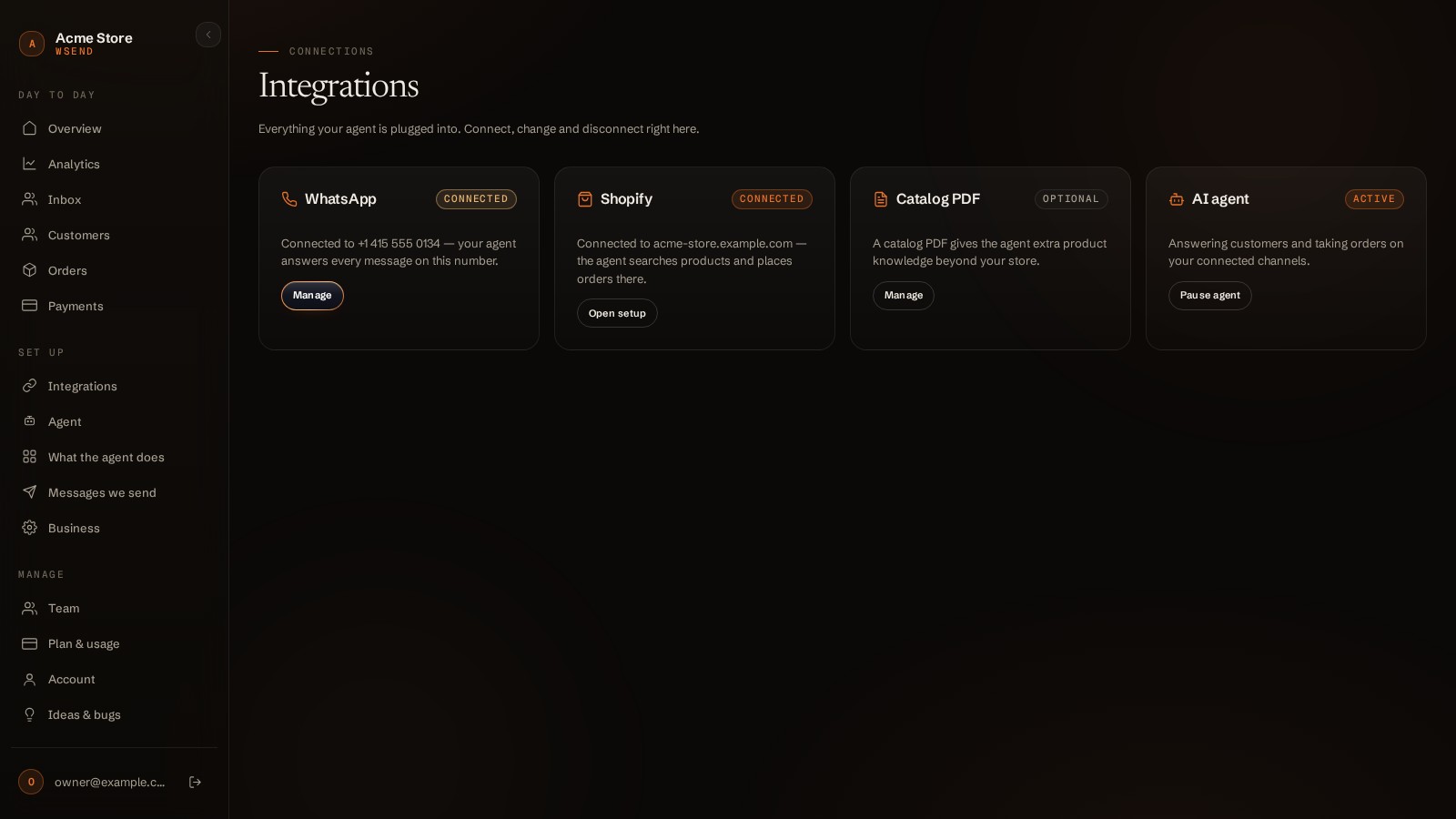
After connecting
- Edit WhatsApp profile (photo, about, details) → — set the photo and business details customers see, right from the panel.
- Replace number — move the agent to a different number; the old one is released.
- Disconnect — two-step confirm. It warns you honestly: "Disconnecting stops the agent on WhatsApp immediately and releases the number from the API, so you can register it back in the normal WhatsApp app. Your customers, orders and chat history stay in this business."
I have my own Meta credentials
If you already run a Cloud API number (for example from a previous provider), open the collapsed I have my own Meta credentials section on the WhatsApp card and paste your Phone number ID and a permanent access token — the card links Meta's own page showing where to find both. Save manual details and you are connected without the popup.
If something goes wrong
The window closed and nothing happened
That reads as "WhatsApp connect was cancelled or did not complete." Just press the connect button again — nothing was half-saved.
"No WhatsApp Business Account was shared"
In Meta's window you have to let WSend see the WhatsApp Business Account you pick. Run the flow again and approve the account step.
"The number is not activated for messaging yet"
Almost always the old two-step PIN. Disable or recover the PIN (see "What kind of number you need" above), then press Replace number to retry — the card shows Meta's exact message, and message us with it if it doesn't clear.
"This WhatsApp number is already connected to another account"
A number can serve exactly one WSend business. Disconnect it there first, or use a different number.
Connected, but replies stopped sending
The WhatsApp card surfaces the last send failure with Meta's own words ("This number could not send its last reply…"). That message names the fix — most often a billing or verification task inside Meta Business Manager.
Good to know
- Coexistence works: reply to any chat from your own WhatsApp Business app and the agent pauses for that conversation — takeover isn't only a panel thing.
- One number serves one business. A second business on your account needs its own number.
- When Meta refuses a send, the card shows Meta's exact words with the number id and time — screenshot that line and support is halfway done.